How to install .NET 8 on Windows (64-bit)
A program asked for .NET 8 and will not start without it. This is the whole operation: four steps, most of which is waiting for the file, and one command at the end that tells you whether it worked.
Before you download: .NET 8 is out of support
Microsoft stopped supporting the .NET 8 line on 2026-11-10. No more fixes come for it, including security ones. That is not a reason to avoid installing it — a program that was built against .NET 8 needs .NET 8, and nothing else will do — but it is worth knowing, and no other page about this will tell you.
If nothing on your machine actually requires 8, install the current line instead. The pages here carry both.
Take the right one of the four
Microsoft publishes .NET 8 as four separate downloads. A desktop program — anything with a window — needs the Desktop Runtime. The plain Runtime is not enough for it, the ASP.NET Core Runtime is for servers, and the SDK is for writing .NET rather than running it.
- Open Microsoft’s download page for .NET 8.
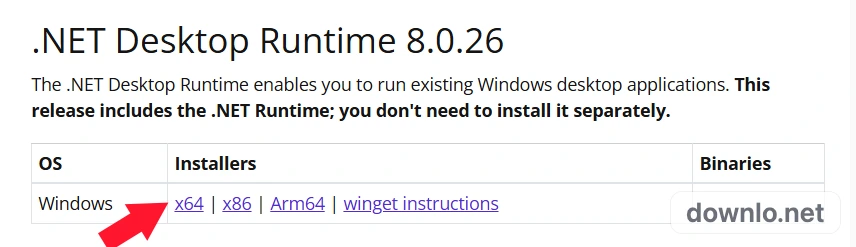
- Find the section headed .NET Desktop Runtime.
- Under Windows, take the x64 installer — that is 64-bit. Not x86, which is 32-bit.
Run it
- Open your Downloads folder and double-click the file.
- Windows asks for permission; say yes.
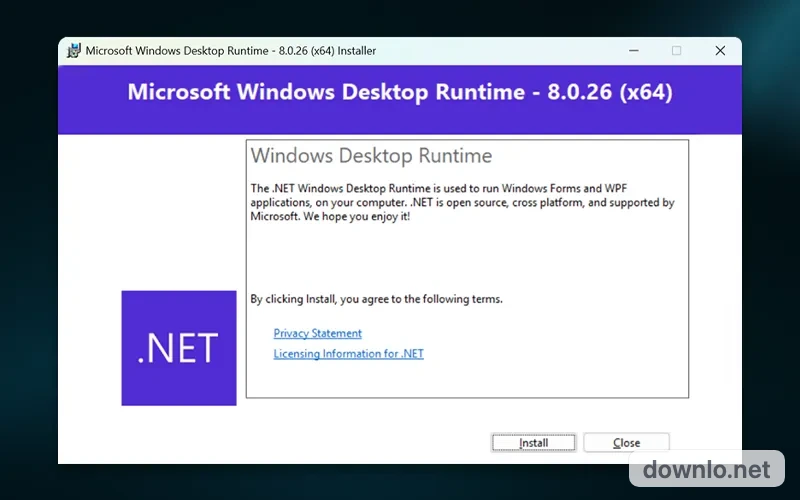
- Press Install. There is nothing to choose — no components, no folder, no options.
- Wait for it to say it has finished — usually well under a minute. Everything it installs is inside the file you already downloaded, so it asks the network for nothing while it runs.
Prove it worked
Do not take the installer’s word for it. Press Windows + R, type cmd, press Enter, and ask .NET what it has:
dotnet --list-runtimes
A line starting Microsoft.WindowsDesktop.App 8.0 means the desktop runtime is in place. If the list has 8.0 under a different name — Microsoft.NETCore.App only — you installed the plain runtime, not the desktop one, and a program with a window will still refuse to start.
If the command is not recognised, close that window and open a new one: a terminal opened before the install knows nothing about it.
If it still will not start
- The program names a different version. Install that one — the lines do not substitute for each other, and 10 does not answer a program asking for 8.
- You installed 32-bit by mistake. A 64-bit program wants the x64 runtime; check the list above for the architecture.
- The installer says it is already installed. Then it is, and the problem is elsewhere: run the command above and read what is actually there.
- It stopped partway. Download the file again and run it again — a half-arrived installer is the commonest cause.
Frequently asked questions
Will installing .NET 8 remove the version I already have?
No. Each version line installs in its own place and the others are untouched. Having several is normal.
x64 or x86?
Whichever the program is, not whichever Windows is. The dialog says so in its detail line — (x64) or (x86) — and a 32-bit program wants the x86 runtime even on 64-bit Windows.
Do I need the SDK as well?
No. The SDK is for writing .NET programs. To run one, the runtime is all you need.
Get the .NET Desktop Runtime
8.0.34, 55.7 MB, from Microsoft itself — with the published checksum printed beside it, so you can check that what landed is what they published.
.NET 8.08.0.34 · 55.7 MB